Agents and processes
An agent is an AI coding CLI that Patterm runs for you inside a project; a process is any other command, such as a dev server or a shell.
Launch an agent##
Choose the Launch agent button (the plus sign) in the top bar, or in the sidebar in sidebar mode. The menu lists each agent CLI Patterm found on your PATH. If none are installed it says No agent CLIs found on PATH. See Supported harnesses for what each one needs.
Click an agent to launch it with its default preset. Hover over it, or use its submenu, to choose a different preset. The menu also has two other controls:
- TUI or Integrated. Chooses the interface for this launch and becomes your default. See Integrated and TUI agents.
- Launch on. In a project linked with another host, choose which host runs the agent. See Multiple hosts.
From the command palette (Ctrl+K), choose Launch agent… to pick the agent, preset, worktree (Runs in) and interface in one place, with an optional first message. In an empty project, the Get Started screen has a button for each installed agent.
An agent runs in the project directory. Choose a worktree under Runs in in the palette's launch page to start it there instead.
Integrated and TUI agents##
Every agent runs in one of two interfaces. Both run the same real CLI under your account.
Integrated is the default. Patterm shows the conversation in its own view, with a composer at the bottom for your messages. There is no terminal for these agents.
TUI is the harness's native terminal interface, drawn in a Patterm terminal. You type into the CLI itself. See Terminal.
Choose the interface##
Your choice applies to the next agent you launch and is saved as your default:
- In the Launch agent menu, use the TUI / Integrated toggle at the top. On a phone, the toggle is in the menu's header.
- In the command palette (Ctrl+K), choose Launch agent… and set Interface.
Each agent keeps the interface it was launched with. The raw terminal has no Integrated mode.
What Integrated adds##
- A conversation view. Messages, tool calls and replies in a transcript, with
@mentions of agents and files in the composer. You can queue a message while the agent is working. - Prompts in the conversation. Permission requests and questions from the agent appear as cards you answer in place. Your answer goes back to the CLI, which decides what to do with it.
- Slash commands.
/newstarts a fresh conversation with the same agent./resumeresumes an earlier conversation./restartstops the agent and resumes the same conversation in a new process, so it picks up MCP server, login and settings changes. The CLI's own commands and selectors, such as the model, are offered too, and also appear in the command palette. - Figures. Agents can put charts, tables, diagrams and similar figures in their replies with the
ui_savetool. Turn this off in Settings › Figures. - Context and cost. A ring beside the composer shows how full the conversation's context is, with the session cost where the CLI reports one. Hover it for token counts and quota windows.
- Background tasks. A shelf above the composer lists the shell commands and subagents the CLI is running in the background. Select one to read its output, or choose Stop on those that can be stopped.
- Idle compaction. Patterm can compact an idle Integrated agent once, just before its prompt cache expires, so your next message starts from a short summary. Set it per CLI in Settings › Idle compaction.
- A read-only transcript after exit. When the session ends, the conversation stays on screen, marked as read-only.
What stays the same##
- The native CLI does the work. Patterm does not call a model itself.
- The CLI's permissions and approval flow apply in both modes. See Supported harnesses.
- Native resume IDs, conversation history, presets, worktrees, subagents, timers, tabs and the session context panel work the same way.
- Patterm's MCP tools are available to the agent in both modes, except
ui_save, which is offered to Integrated agents only.
Presets##
A preset is a named model, reasoning effort and, for Codex, speed. Create them in Settings › Harnesses. A launch with no preset chosen uses the CLI's default preset, which starts as one that sets nothing, so the CLI uses its own configured model. See Models and presets and Settings.
Processes##
A process is a command Patterm runs in a project terminal. Use the command palette (Ctrl+K):
- New terminal opens a shell in the project.
- New process… asks for a command, such as
pnpm run dev. Choose Run to run it once, or Run and relaunch on exit to have Patterm start it again when it exits. Patterm stops relaunching a process that keeps exiting within seconds of each start. - On the Worktrees page, Open terminal beside a worktree opens a shell in that worktree.
Agents can also start processes, and those appear under the agent that started them.
A process gets a tab while it runs. For one that has stopped or exited, choose it in the palette (it is labelled Stopped, Exited or Failed) to restart it.
The tab strip##
In tabs mode, the top bar shows one tab for each top-level agent and process in the project. Click a tab to open it. Drag tabs to reorder them. The order is remembered per project, in the browser or app you are using.
Right-click a tab for its menu:
| Item | What it does |
|---|---|
| Rename | Changes the label shown on the tab. |
| Pin tab / Unpin tab | Pinned tabs shrink to just their icon and stay in a group at the start. |
| Set timer | Sets a timer that messages the agent. See Timers and routines. |
| Copy process ID | Copies the ID agents use to address it. |
| Close | Closes the agent or process. |
Hover over an agent's tab to open its popover. It shows the agent's summary, its subagents, the processes it started, and its timers with a countdown. Subagents and processes are listed under the agent that owns them, with the same Rename, Set timer, Copy process ID and Close menu on each row. A badge on the tab counts them.
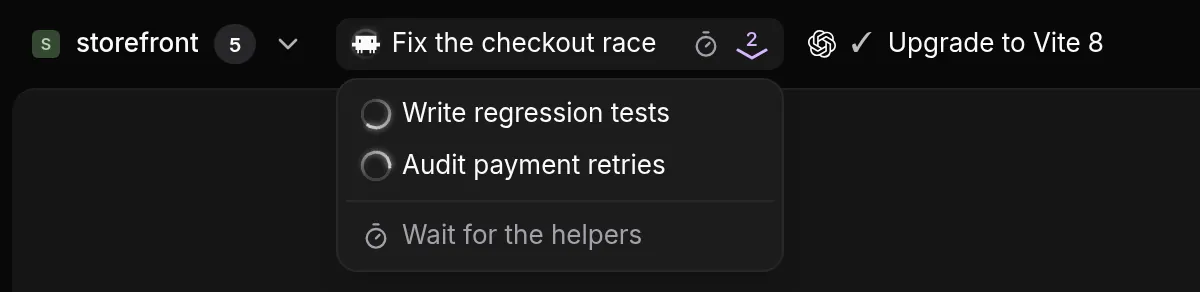
On a phone, the strip becomes a single Open tabs button that opens a list of the same agents.
Sidebar mode##
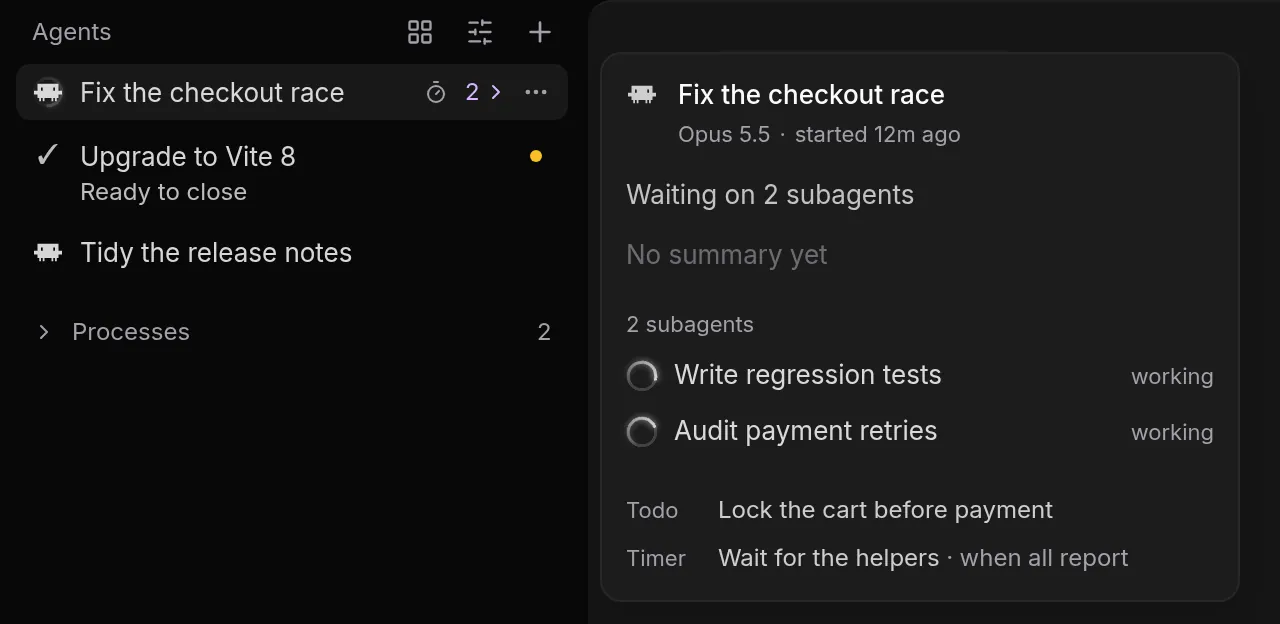
In Settings › Appearance › Navigation you can show agents in a sidebar instead of tabs. The sidebar lists the same agents, subagents and processes as a tree. Its view options include Group by status and Show every summary. Hover over an agent, or reach it with the keyboard, to see a card with what it needs from you, its summary, its branch, diff, todos, links and timers.
Status indicators##
Each tab and sidebar row shows what its agent is doing:
| Indicator | Meaning |
|---|---|
| Spinner | Working or thinking |
? |
Needs permission |
✕ |
Error |
| Ring | Idle, or unknown when Patterm cannot tell whether a turn is running |
| Check mark | The agent has asked to close and is ready |
A subagent count on an agent's tab changes colour with the state of its subagents, so a subagent waiting for permission or in error shows up without opening the popover. A small dot marks an agent or process with an unread notification.
Rename, stop, close and restart##
Rename an agent or process from its tab menu, or with Rename agent… or Rename process… in the palette. Patterm can also name agents from their summaries when you turn on auto-summaries. A name you choose always wins.
Close ends an agent or process and removes its tab. Closing an agent also closes the subagents and processes it started. The palette asks you to confirm and lists them first. The conversation stays in Conversation history, so you can resume it later.
For a process, Stop process in the palette stops it but keeps its record, and Restart process starts it again.
Stop response in the palette interrupts an Integrated agent in the middle of a turn without closing it.
Restart agent in the palette (or /restart) resumes an Integrated conversation in a new process. It asks for confirmation if the agent is responding. Restart all agents does the same for every idle top-level Integrated agent across your projects and leaves working ones alone. The new session keeps the old one's worktrees, todos, scratchpads, links, subagents and timers.
Close finished subagents closes subagents that have reported to their parent and are idle.
Resume behaviour##
Patterm keeps each CLI's own conversation ID, so a conversation can be resumed in the CLI's native way. It learns the ID when it launches the agent, or by matching an exited agent to its imported conversation history. If it cannot find one, the exited agent shows Exited · no resume.
To resume a conversation, do any of these:
- choose Resume on a conversation on the History page;
- choose Resume conversation… in the palette;
- type
/resumein an Integrated conversation.
A resumed agent is a new agent that continues the old conversation. Its links, notes and unfinished todo assignments carry forward, and it takes out fresh leases on those todos.
What survives depends on what stopped:
- Closing a browser tab or window. Nothing stops. Agents, processes, timers and history imports keep running, and the page reconnects when you return.
- Restarting the Patterm service. Where Patterm is installed as a Linux service, terminals run in separate units that survive it. When Patterm starts again it reconnects to them, and native processes and sleeps carry on. Timer deadlines are kept, and overdue timers fire after reconnection.
- Quit Patterm in the palette. This stops every agent, command and timer in all projects, and asks you to confirm. Saved conversations remain available to resume.
- Rebooting the machine. Processes end, and Patterm does not resume agents for you. Resume each conversation yourself.
Note
The desktop app keeps its terminals in its own process, so closing its window quits Patterm and ends them. Only the background service runs terminals in independent units. See Linux server.
Session context##
Open the Session context panel from the panel button beside an agent's terminal or conversation (Open session context), or from the palette. It shows what belongs to that one agent:
- its summary, if you have auto-summaries on;
- Worktrees linked to the session, with their diff totals. Choose one to review its changes.
- Todos assigned to it, with status controls;
- Scratchpads attached to it;
- Links to issues and pull requests;
- Media, the images pasted into or viewed in the session.
Each section has a plus button to add or create an item, and hovering a row shows its actions, such as unassigning a todo or detaching a scratchpad. These remove the item from the session only. Drag the divider, or focus it and use the arrow keys, to resize the panel. Esc closes it. On a narrow window the panel opens over the terminal.