Timers and routines
Timers wake an agent or process after a delay or when other agents finish, and routines start a fresh agent on a schedule.
Both run inside Patterm, so they work with any harness. They are separate features:
| Timer | Routine | |
|---|---|---|
| Purpose | Wake an existing agent or process | Start a new agent |
| Trigger | Elapsed time, or watched agents reporting or going quiet | A weekly schedule, or one time |
| Lifetime | Fires once, then disappears | Stays until you delete it |
| Cancelled on quit | Yes | No |
Timers##
A timer sends a message into a process when it fires. The message is typed into that process as if you had sent it. The owner is the agent that set the timer, unless you or the agent choose another with owner_process_id.
Set a timer yourself##
- Right-click an agent's tab, or open the actions menu for an agent in the sidebar, and choose Set timer.
- Choose a duration with the 30s, 1m, 5m or 15m buttons, or type one such as
30s,5mor1h. - Optionally add a label and a prompt. A blank prompt sends the default reminder.
The search box ("Search or jump to", Ctrl+K) has a Set timer command too. Type a duration first, then any words you want the agent to receive when it fires, such as 10m check the build.
An agent's timers show on its tab with a timer icon, and in the sidebar card for that agent. To pause, resume or cancel one, open the search box and find the timer in the list. Each timer has Pause timer (or Resume timer), Go to agent and Cancel timer actions.
Timers agents set##
| Tool | Use it for |
|---|---|
timer_set |
A reminder after seconds, with an optional body and label. Use it only when elapsed time is the condition. |
timer_fire_when_reported_all / _any |
Waiting for delegated agents to call report_to_parent or stop. |
timer_fire_when_idle_all / _any |
Readiness and quietness checks. |
timer_list, timer_pause, timer_resume, timer_cancel |
Managing timers by timer_id. |
The report and idle timers take watched process IDs and a body. max_wait_seconds is a rescue timeout for a condition that never happens, not a polling interval, so leave it out unless you need a fallback. See Agents that run agents for when to use which.
A paused timer keeps the time it had left and counts down again when resumed.
Quitting and restarting##
Quitting Patterm cancels every timer. Quit asks you to confirm, because it also stops your managed agents and processes.
If you run the installed Linux service, timers are saved with their deadlines. When the service restarts or the browser reconnects, saved timers are restored once Patterm has checked which agents are still running, and any that are overdue are delivered then. Without the installed service, timers last only while Patterm runs. See Linux server.
Patterm marks a timer as used before it sends the message. If Patterm crashes during delivery, that one callback can be lost. It is never sent twice.
Routines##
A routine starts a fresh agent at a chosen time with a prompt. Use one for recurring work, such as a 16:30 roundup of the day's changes, or for a follow-up that should happen later, such as checking a deploy in an hour.
Routines are saved and survive restarts. Patterm starts them only after it has reconciled the agents and processes that were running, so a run sees which agents survived. A run that fell due while Patterm was stopped starts once when Patterm comes back, and its record says it was a catch-up.
Create and manage routines##
Open Scheduled from the calendar icon in the top bar, or search for "Scheduled". The page lists:
- Needs you. Runs that are waiting on a permission prompt, blocked or failed.
- Last 12 hours. Recent runs, with a link to All reports.
- Coming up. The next runs, grouped by day.
- One-off and Every week. Your routines, each with a switch to turn the schedule on or off.
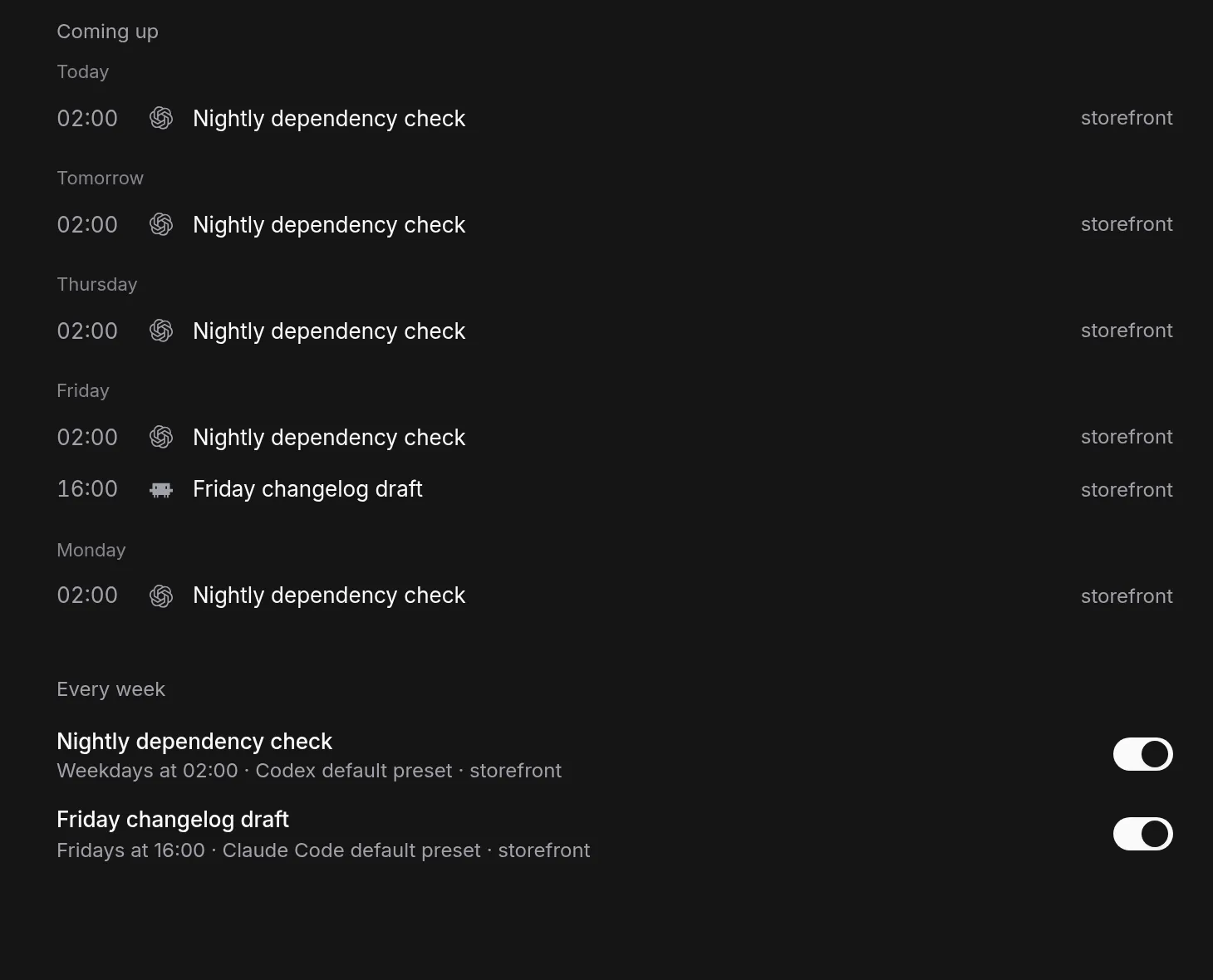
Choose New routine to create one. A routine reads as a sentence, and each underlined part opens its options:
- Run every week or once. A weekly routine takes days of the week and a 24-hour time. A one-off takes a date and a time.
- Start a harness (Claude Code, Codex or OpenCode) with a preset or a model, and an effort level and speed where the model has them.
- In a project. Choose a project, or All projects for a routine that reads across every project.
- Ask it to: the prompt. These placeholders are filled in when the run starts:
{{date}},{{weekday}},{{since}}(the last successful run) and{{last_run_at}}. - When it reports: notify me or do nothing.
Edits save as you make them. The footer shows the next run and time zone, an On schedule switch that pauses the routine, and Run now, which starts a run straight away even when the routine is paused. The actions menu has Duplicate and Delete routine. Deleting removes the run history but leaves running agents running.
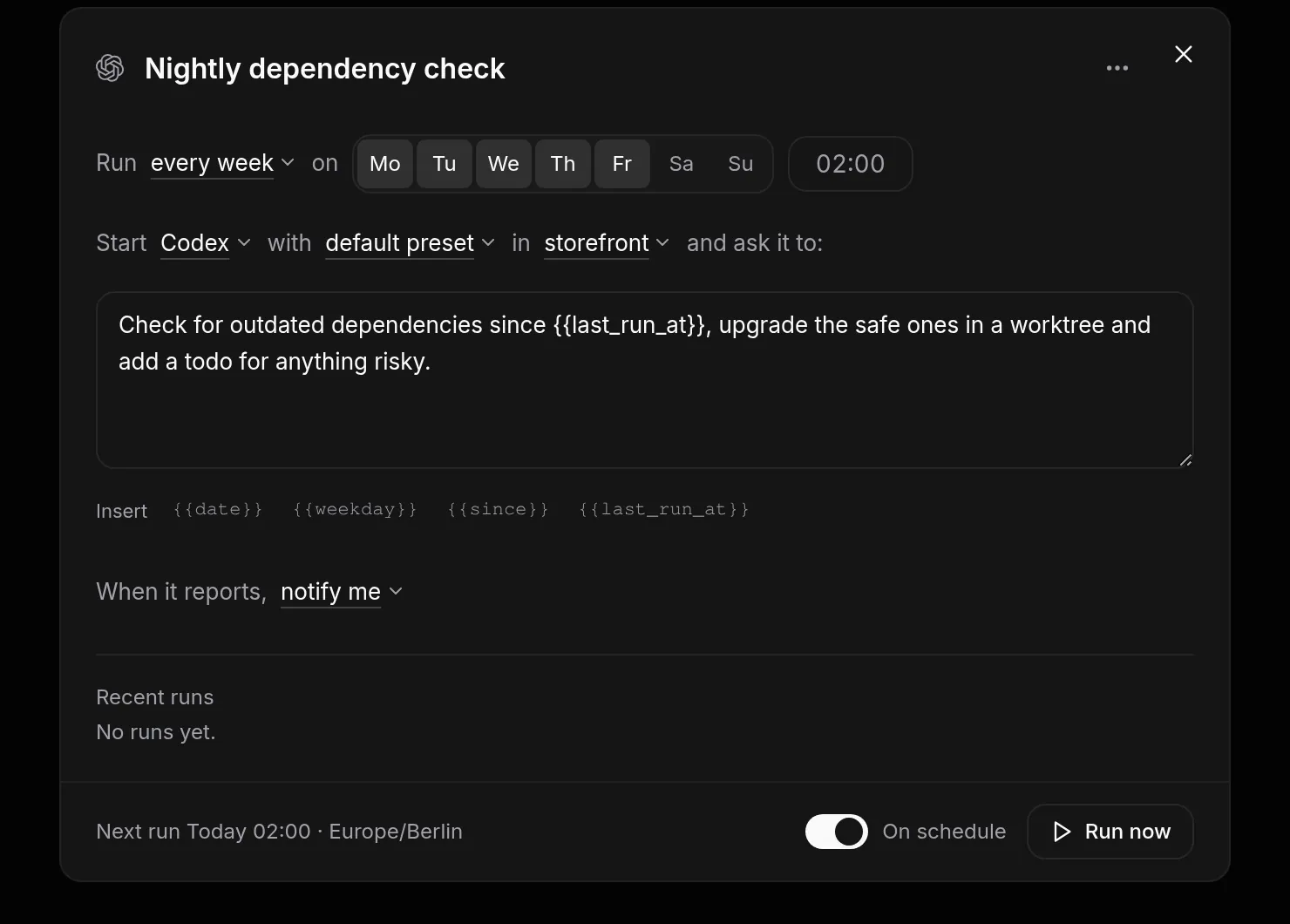
Weekly routines work like a simple cron job: they repeat on the weekdays and at the time you choose, in the time zone you set. You pick days and a time rather than writing a cron expression.
How a run works##
Each run starts a new agent and tells it to do the task without waiting for you. When it finishes, the agent calls report_to_parent, which completes the run and records the report. Patterm stops the session after it has been idle for 10 minutes. The run status is Running, Done, Blocked, Failed, Nothing to report or Skipped.
A run is skipped if the previous run of the same routine is still going.
Routines have no permission or approval setting. The run uses the harness's own permissions, so if it stops on a prompt, it waits for you, and the run shows Needs you. Open the run from the Scheduled page to answer it.
Reports are listed on the Reports page, which you can reach from the Scheduled page.
Agents can schedule too##
Agents have routine tools, and they use them when you ask for recurring or delayed work:
| Tool | Purpose |
|---|---|
routine_create |
Schedule a weekly routine. |
routine_schedule_once |
Start a fresh agent once, with in_minutes or run_at (an ISO time with an offset). It reports to you, not to the agent that scheduled it. |
routine_update, routine_delete |
Change or remove a routine. Set enabled to false to pause. |
routine_list, routine_get |
Read routines. |
routine_run_now |
Start a run straight away. |
routine_runs, routine_log, routine_run |
Read run history and reports. |
A one-off must be within a year, and a project holds at most 20 waiting one-offs. A project agent can only manage routines in its own project. Only the user, the assistant and workspace routines can choose another project or none. Routines an agent created say so in the dialog.
Routines on other hosts##
If you have paired another machine and linked the project, an agent can pass host (the paired host's name) to any routine tool except routine_run_now. The routine is saved on that host, belongs to it, and runs there. Routine IDs are that host's own. See Multiple hosts.