Worktrees
Patterm tracks git worktrees per project, so each agent can work on its own branch without disturbing the others.
A worktree is a second checkout of your repository. Patterm creates and links them for you, but it never commits, never pushes and never deletes a directory or branch.
Create a worktree##
- Open the project's Worktrees page. You can also pick Worktrees from the command palette (
Ctrl+K). - Select Create worktree (the plus button).
- Enter a Name, such as
feature-name. Leave the path empty unless you want the checkout somewhere specific. - Select Create.
Patterm turns the name into a lowercase, hyphenated ID and uses it for both the branch and the directory:
| Item | Value |
|---|---|
| Branch | patterm/<id>, for example patterm/feature-name |
| Directory | <repository>/.worktrees/<id>, unless you give a path |
| Starting point | The commit currently checked out (HEAD) |
Patterm also adds /.worktrees/ to the repository's local exclude file, so the new directories do not show up as untracked files.
Creation fails, and nothing changes, if the directory already exists or git refuses the branch name, including when a branch with that name already exists. Choose a different name and try again.
Note
In the browser, paths refer to directories on the server. For a project on a paired host, they refer to that host.
Link an existing worktree##
If you already have a worktree, for example one made with git worktree add, link it instead:
- On the Worktrees page, select Link worktree.
- Enter the path of the directory, or use Browse… where it is available.
- Select Link.
Patterm reads the branch from the checkout. Linking a directory the project already knows about returns the existing entry rather than adding a duplicate.
The Worktrees page##
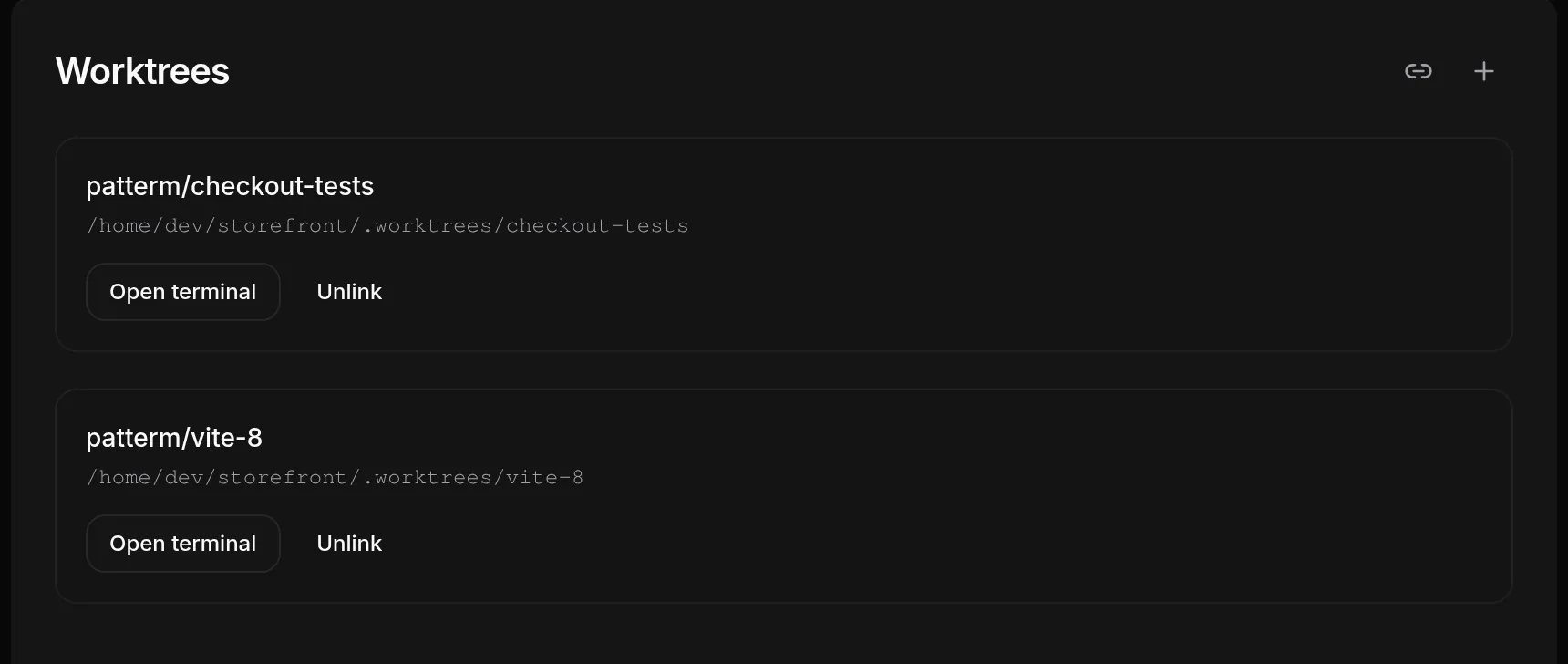
Each linked worktree appears as a card showing its branch (or Detached HEAD) and its path. Two buttons act on it:
- Open terminal starts a shell in that worktree.
- Unlink removes the worktree from the project.
The command palette offers the same actions on a worktree: Open terminal and Unlink worktree.
A project that is not a repository, such as the optional Personal project, has no Worktrees page.
Run an agent in a worktree##
When you launch an agent from the command palette (Launch agent…), the Runs in setting lets you choose Project directory or any linked worktree. The agent starts with that directory as its working directory.
Worktrees and sessions##
Each agent session lists the worktrees it uses in the Worktrees section of its session context sidebar. See Todos and scratchpads for the rest of that sidebar.
- The directory the agent runs in appears first and cannot be unlinked.
- Select the plus button (Link a project worktree) to add another project worktree to the session. A session can link at most 10.
- Each row shows the worktree's change count. Select a row to review its diff.
- Select the cross on a row to unlink it from the session. This only removes it from that session's list.
Agents manage the same links through MCP tools:
| Tool | What it does |
|---|---|
worktree_create |
Creates a worktree and links it to the calling agent |
worktree_link |
Registers an existing worktree and links it to the calling agent |
worktree_attach |
Links an existing project worktree to a session |
worktree_detach |
Unlinks a worktree from a session |
worktree_list |
Lists the project's worktrees |
Agents can also pass a different starting point to worktree_create.
Unlink and abandon##
Unlink on the Worktrees page removes the worktree from the project and clears it from any session that linked it. It does not touch the files or the branch. To delete them, use git yourself, for example git worktree remove and git branch -d.
Commits and pull requests##
Patterm does not commit, push or open pull requests. Agents use their own CLI workflows for that, and you can attach the result to the session as a link.