Multiple hosts
Pair Patterm on two machines, such as a dev box and a desktop with a GPU, so the agents on each can see and message the other's.
Each machine stays an independent Patterm. It keeps its own agents, data and MCP tools, and nothing is copied between them.
Pair two hosts##
At least one of the two must be a server (see Linux server). The desktop app has no server of its own, so it always pairs to a server and keeps that connection open. The server sees the desktop's agents while it is connected.
- On the server, open Settings › Hosts and choose Show pairing code. The code lasts ten minutes and works once.
- On the other machine, open Settings › Hosts and choose Pair with a host.
- Enter the server's address, such as
https://workstation.example.ts.net, and the code, then choose Pair.
Each paired host appears under Settings › Hosts with a state of Connected, Connecting… or Offline. Choose Unpair to remove it.
Name your hosts##
Each host has a Name, shown at the top of Settings › Hosts. Names use 1 to 32 lowercase letters, digits and hyphens, and start and end with a letter or digit. Two paired hosts cannot share a name, so rename one before pairing if they match.
Agents on other hosts use this name to refer to yours, as in workstation:process_7.
Warning
Pairing gives the other host your full control of this one, as the owner. It does not use this host's password. Pair only your own machines, and set a password on both.
A server reached over Tailscale accepts pairing only once it can tell who its owner is. Set a password in Settings › Remote access, or set PATTERM_OWNER_LOGIN. Otherwise Settings › Hosts says that pairing is off because the server accepts any tailnet user. See Browser and phone access.
Keep both hosts on the same version of Patterm. Hosts on versions that cannot talk to each other refuse to pair and ask you to update both.
Link projects##
Pairing connects the hosts. To share a project's agents, link the project on both.
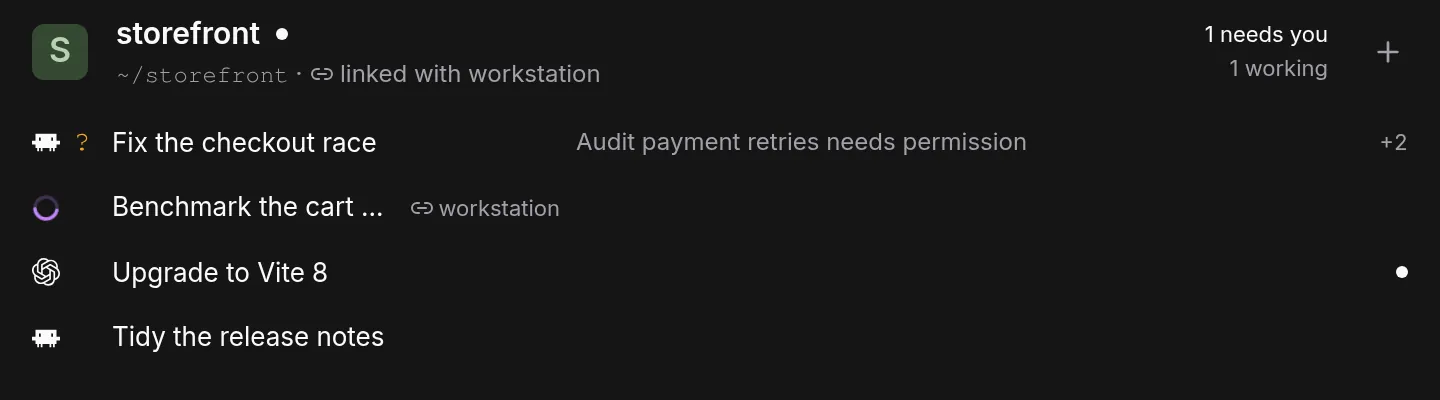
Under the paired host, choose Link a project…, then pick the project on each side. If two projects use the same git remote, Patterm suggests the link and you only choose Link. For a plain folder of repositories, pick the two projects by hand. Choose Unlink to undo it.
Only linked projects show each other's agents. Everything else stays separate.
What you see##
In a linked project, each host's tab strip also shows the other host's agents, with that host's name in muted text beside them. Their terminals, Integrated conversations, diffs and session context come from the host that runs them. The launch menu can start an agent on either host.
Records from a paired host carry the host's name and host-qualified IDs.
In Settings › Hosts, turn off Show agents here to hide a host's agents without unpairing. While hidden, its agents can still message yours.
Control of a terminal is decided by the host that runs it. A browser on either host takes control explicitly, as described in Browser and phone access.
What agents can do across hosts##
An agent in a linked project sees the other host's agents in list_processes as host:process, such as workstation:process_7.
| Can | Cannot |
|---|---|
| Read them with the usual read tools, which accept those addresses | Stop, close, restart or otherwise control them |
Run other read tools on the other host with host_read |
Send input to them directly |
Ask them something with send_message |
Message a shell or a plain command, only agents |
| Save, read and change routines on the other host | Start a routine run on the other host |
Routines are the one write across hosts. Routine tools take a host argument to save a routine on the other host, in the linked project. The routine belongs to that host, runs there on its schedule, and reports there. routine_run_now stays local. See Timers and routines.
Agents on a paired host never control agents on this one.
Messages##
send_message to a host that is offline waits and is delivered once when the host reconnects. If an agent has exited, the message bounces back and you are notified. If Patterm cannot tell whether a message arrived, the agent is told not to resend it blindly.
Messages reach only agents. See MCP tool reference for the tools.