Diff review
Review what an agent changed in a worktree, file by file, without leaving Patterm.
The diff viewer is read-only. It shows git changes, and it never stages, commits or edits anything.
Open the diff##
- Open the agent and show its session context (the Open session context button).
- In the Worktrees section, select the worktree row. Rows show the number of added and removed lines, or No changes.
You can also use Review changes from the command palette. The viewer covers the agent's terminal or conversation. Use the back button, labelled Terminal or Conversation, or press Esc to return.
What it shows##
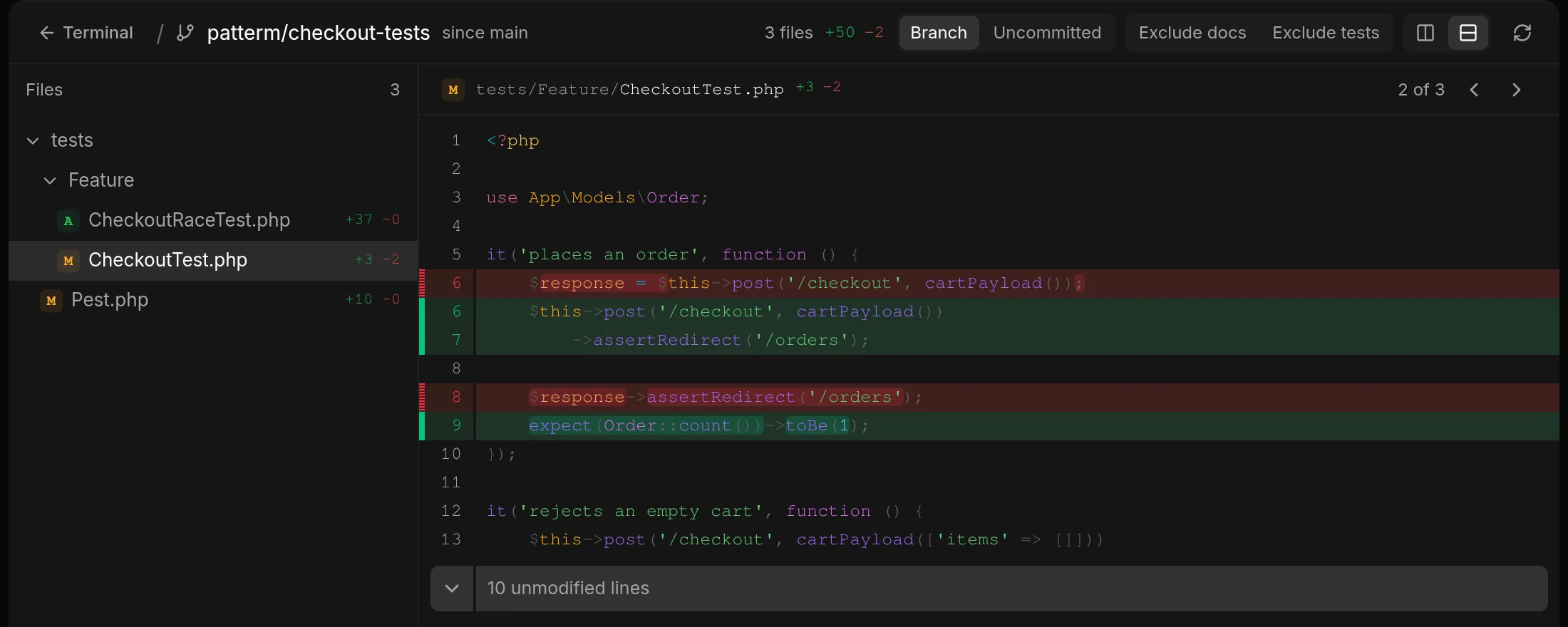
The header has two groups of controls.
Changes to show
| Option | Shows |
|---|---|
| Branch | Everything on the worktree's branch since it split from the default branch, including committed, staged, unstaged and untracked files |
| Uncommitted | Only changes that are not committed yet, including untracked files |
Filters and layout
- Exclude docs hides Markdown, text and other documentation files.
- Exclude tests hides tests, specs, fixtures and snapshots.
- Split and Unified switch between side-by-side and single-column diffs. A narrow viewer always uses unified.
The filters, the scope and the layout are remembered in your browser or desktop app. When filters hide every changed file, the viewer says so and offers Show all files.
The viewer refreshes by itself every few seconds while the window is visible, so you can watch an agent work. Select Refresh changes to update it immediately.
Binary files and files that are too large are listed, but their contents are not shown. If a worktree has a very large number of untracked files, the viewer notes that some are not listed.
Move between files##
- Use the file tree beside the diff to pick a file.
- Select Previous file and Next file, or press
[and]. - In the review deck, select Files to search the changed files by path.
Choose a layout##
Go to Settings › Appearance › Diff review and set Layout:
| Layout | Best for |
|---|---|
| File tree | Browsing changed files in a tree beside the open file. This is the default. |
| Review deck | Working through files in order and marking each one viewed |
The change applies as soon as you choose it.
Review deck##
The deck shows a progress bar of changed files, sized by how many lines each one changed, along with a count such as "3 of 12 files viewed" and the lines left to review.
- Tick Viewed to mark the current file as reviewed.
- Select Viewed, next (or press
v) to mark it and jump to the next unviewed file. - A file stops counting as viewed if its contents change, so you will see new edits from the agent.
Viewed marks are stored on the device you review from. They are not shared between your desktop app and a browser.
Give feedback to the agent##
The viewer has no inline comments. To act on what you find, switch back to the agent and tell it what to change. The agent then edits its worktree, and the diff updates.
Agents can read the same changes with the diff_current and diff_file tools.