Notifications and close requests
Patterm tells you when an agent needs you, finishes a turn, fails or asks to be closed, in the app and, while you are away, on your desktop or phone.
What raises a notification##
Patterm groups notifications by source. You choose how each one reaches you in Settings › Notifications. "Integrated" sources come from Integrated agents, which run in a conversation view. "Terminal agent" sources come from TUI agents.
| Source | When it fires |
|---|---|
| Agent requests | An agent calls notify_user because it needs you. |
| Terminal agent notifications | A terminal agent CLI sends a notification itself, such as a permission prompt. |
| Integrated permission prompts | An Integrated agent is waiting for approval. |
| Integrated turn finished | An Integrated agent finished its turn. |
| Agent failures | An agent exits with an error. |
| Process notifications | A command or script sends a terminal notification, for example OSC 9. |
| Process failures | A command exits with a non-zero code. |
| Bells from agents | The terminal bell rings in an agent. |
| Bells from processes | The terminal bell rings in a command or shell. |
Each source can be set to In app, desktop, and push, In app only, or Off. Most sources default to everywhere. Process failures and agent bells default to in app only, and process bells are off.
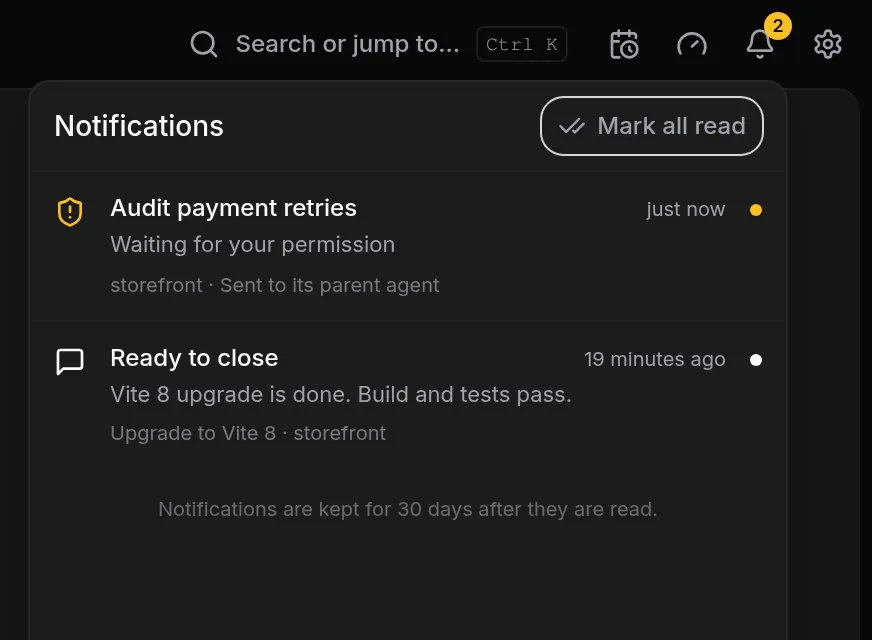
Unread notifications show as dots on tabs and projects. The bell icon in the top bar opens the notification list, where you can open the item that raised each one or choose Mark all read. Read notifications are kept for 30 days.
Delivery settings##
Under Delivery in the same panel:
- Minimum urgency. Desktop and push notifications below this level stay in the app. Low includes bells, Normal is the default, and High sends only permission prompts and failures.
- Show toasts in the app. Turns the in-app pop-ups on or off. Unread dots stay on either way.
- Quiet routine turns. When an Integrated agent is only waiting on other agents or reporting progress, its finished turn stays in the app without a toast or push. Questions, decisions and results still reach you.
Send test notification at the top of the panel raises a test notification. Switch away from Patterm within five seconds to see it on your desktop or phone.
Desktop and phone##
Desktop and push notifications are only sent while no Patterm window is focused. A low or normal urgency notification waits about five seconds first, so a request you answer straight away never reaches your phone. High urgency goes straight out.
The desktop app shows native notifications. To get them on a phone or another browser:
- Open Patterm's browser address on that device. See Browser and phone access.
- Go to Settings › Notifications, then This device.
- Choose Enable on this device and allow notifications when the browser asks.
The same section lists every device that has notifications on, with the time of the last delivery, and a Remove button for each. Push needs HTTPS. On iPhone and iPad, add Patterm to your home screen first and open it from there.
When an agent asks for you##
An agent calls notify_user only when it is blocked on a human decision, such as a choice, credentials or an approval. It takes a title, an optional message, and an optional urgency of low, normal or high. Agents are told not to use it for progress updates. Requests are limited to five per minute for each process, and repeats of the same request update the existing notification instead of adding another.
The notification belongs to that agent and clears when you answer it.
Child agents##
A child agent's notify_user does not reach you. It goes to its parent as a message, and the parent decides whether to deal with it or escalate. The parent might answer from what it already knows, or call notify_user itself. See Agents that run agents.
If the parent has stopped, the child reaches you directly, and the notification says which agent it came from. Agents with no parent, such as agents you opened yourself, also reach you directly.
Notifications that child agents raise for permission prompts or failures do not toast or push. They mark the tab, and the parent is told once.
Close requests##
When an agent has finished its task and has nothing left to hand over, it calls request_close with a summary. You see a Ready to close card with that summary:
- In an Integrated conversation, the card sits in the conversation.
- For a terminal agent, it sits under the terminal.
Choose Close to close the agent, or Keep open. Before you choose Keep open you can type a reason in the field above the buttons, and Patterm sends it to the agent. If the agent has running subagents, the card says that closing also closes them.
If you ignore the card, the agent stays open. Sending the agent a new message withdraws the request.
A child agent's request_close goes to its parent instead of to you. The parent receives a message with the child's summary and closes it with close_process when the work is settled. Agents are told to call report_to_parent first.
Letting the assistant filter##
If you use the assistant, Forward notifications under Settings › Assistant sends it a short summary when agents need you or finish. The assistant also has a Focus mode that holds these until you end it.