Browser and phone access
Open a Patterm server from a browser on any of your devices, and install it as an app on your phone.
You need a server running first. See Linux server. The desktop app does not serve a browser page.
Choose where Patterm can be opened from##
Open Settings › Remote access in a browser connected to the server. The tab only appears in the browser, not in the desktop app. Pick one for Open from, then choose Apply and restart. Applying restarts only the web server. Agents and terminals keep running, and open pages reconnect.
| Option | Who can connect |
|---|---|
| This machine | Browsers on the server itself, at http://localhost:8787. The default for a new install. |
| Tailscale | Your devices on your tailnet, over HTTPS. |
| Network | Any device that can reach one of the machine's addresses. Needs a password. The connection is plain HTTP. |
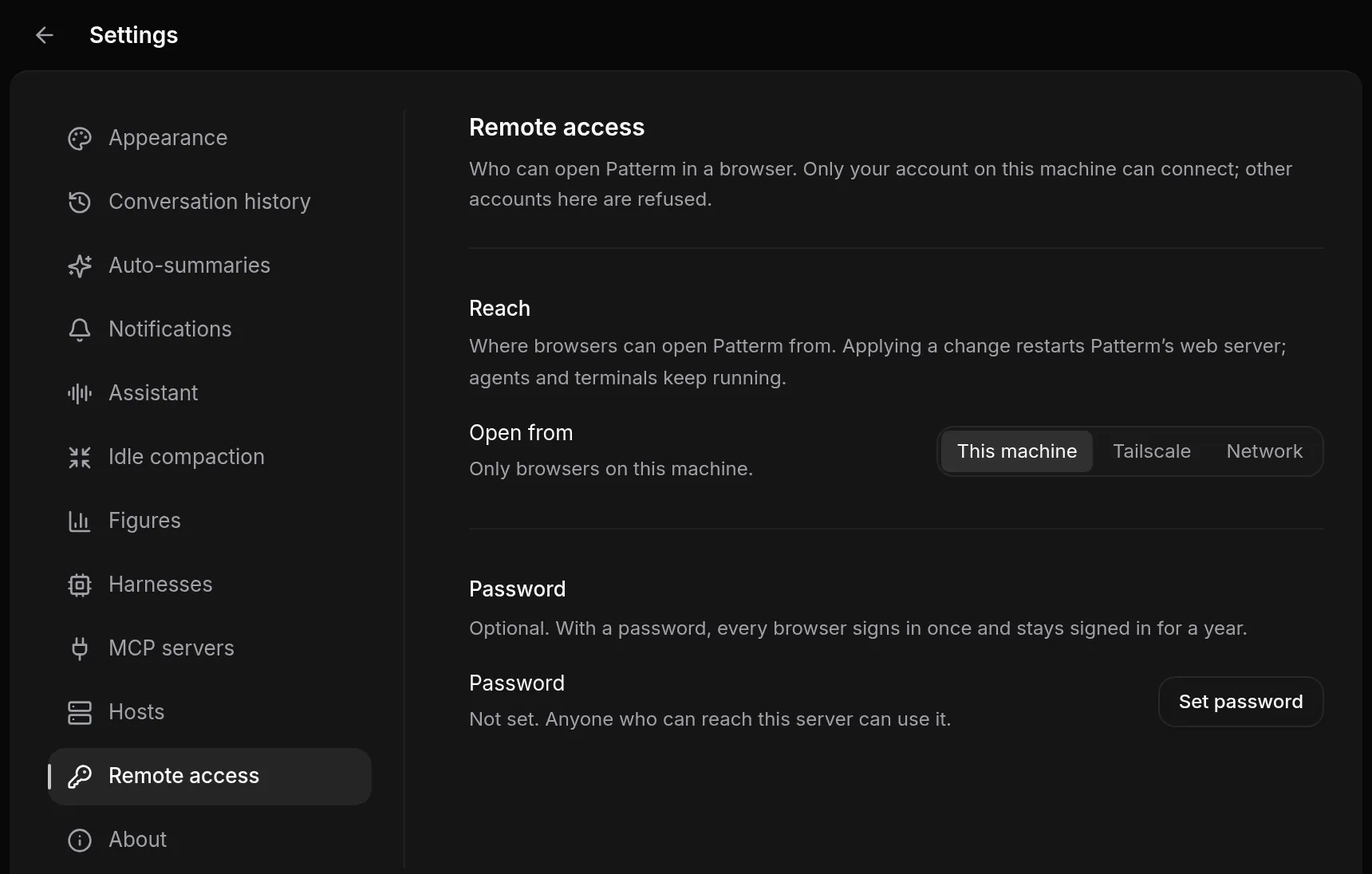
Only your own account on the server can connect to the local listener. Connections from other accounts on that machine are closed.
Warning
Browser access lets whoever connects run commands as the account running the service. Patterm has no separate login unless you set a password. Restrict who can reach it.
Tailscale##
Tailscale must already be installed and connected on the server. With Tailscale selected, Patterm adds its own route (/ on HTTPS port 443) to Tailscale Serve and shows the address, such as https://your-machine.your-tailnet.ts.net. It removes the route when you switch away, and leaves other apps' routes alone.
Before you turn it on, restrict who on your tailnet can reach that machine's port 443 to your own identity in your tailnet policy. Remove any broader rule that allows the same destination. A narrow rule does not cancel a broad one. See Tailscale's grant examples.
Turn on Only me to refuse requests that Tailscale says come from anyone but your login. Tagged devices send no login, so your tailnet rules or a password decide those.
Patterm never uses Tailscale Funnel. It refuses to configure Serve while Funnel is on, and it refuses any request that arrives through Funnel.
You can do the same from the server's terminal:
patterm --headless --tailscale-serve
This finds the machine's Tailscale name, starts the service, adds the Serve route and prints the HTTPS address. If Tailscale asks for administrator permission, grant your account operator access once with sudo tailscale set --operator="$USER". Run Patterm without sudo.
Password##
Under Password, choose Set password (at least 8 characters). With a password set:
- Each browser signs in once and stays signed in for a year.
- Changing or removing the password signs out every browser.
- Sign out under This browser signs out only the one you are using.
A password is optional on This machine and Tailscale, and required for Network. Set one if any tagged device can reach the server.
Network##
Network listens on one address of the server, which you choose under Address. The connection is not encrypted, so use it only on a network you trust. Copying text from a terminal needs HTTPS, so it works only when you open Patterm on the server itself.
Install as an app##
Open the server's HTTPS address in a browser that supports installing web apps, then use the browser's Install app command. On iPhone and iPad, use Safari's Add to Home Screen. Keep Tailscale connected on the device.
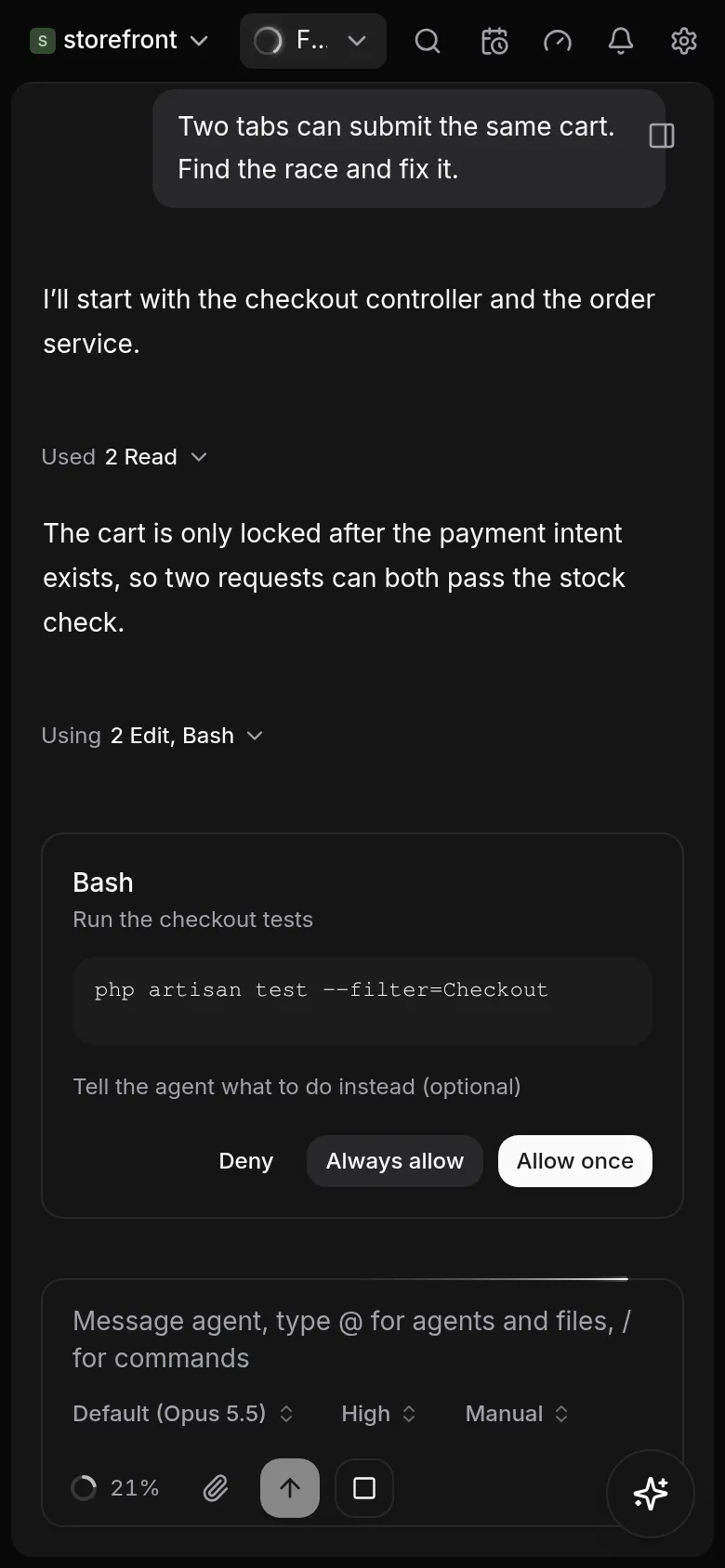
Each server address is a separate app that connects to its own server.
The installed app caches only an offline page that explains how to reconnect, and its icons. It never caches or queues conversation history, uploads or commands, so live work needs a connection to the server. Updates wait until your open app windows close, so an update never reloads a live terminal.
For testing on the server itself, http://localhost:8787 works. Installing from another device needs the HTTPS address from Tailscale.
Notifications on your phone##
In the browser, open Settings › Notifications. Under This device, choose Enable on this device and allow notifications when your browser asks. Turn off on this device undoes it, and Remove deletes any other device from the list.
Desktop and push notifications are sent only while no Patterm window is focused. For each source, such as agent requests or failures, you can choose In app, desktop, and push, In app only or Off. See Notifications and close requests.
Push notifications travel through your browser's own push service (Google, Mozilla, Apple or Microsoft), so a notification's title and text pass through it. Patterm accepts push endpoints from those services only.
If enabling fails with "The service worker is not running", reload the installed app and try again.
One browser controls each terminal##
Several browsers can show the same terminal. Only one controls it at a time, and only that one types into it or sets its size. The first browser to open a terminal takes control.
Another browser sees the screen and a notice reading Viewing shared terminal. Choose Take control to take over. Integrated conversations work the same way, with a Take control button in the composer.
This stops a phone and a laptop from fighting over the terminal size or typing into the same prompt.
When the connection drops##
Closing a tab, putting a phone to sleep or losing the network does not stop agents, commands or timers. The page shows Disconnected. Agents continue running. Reconnecting… and retries, waiting up to 10 seconds between attempts.
When it reconnects, Patterm reloads the workspace and asks for a fresh snapshot of each terminal before it applies new output.
Patterm never replays what you were doing while the connection was down. Commands and keystrokes in flight fail with "Connection lost. The command was not retried." Check the result before you send them again.
Paths are on the server##
In the browser, file paths mean paths on the server. The New project dialog asks for a Server path and its Browse… button lists the server's folders. You cannot browse your phone's or laptop's disk.
Files you attach or paste into a conversation are uploaded to the server's uploads folder. The limits are 10 MiB per file, 256 MiB in total and 1000 files. On the next upload, Patterm removes files older than seven days. Keep anything lasting in the project itself.