Conversation history
Patterm imports the conversations your agent CLIs already keep, so you can browse, search and resume past work from one place.
History is read from the CLIs' own files on the machine that hosts Patterm. Patterm reads those files and never changes them.
Import conversations##
Patterm imports from three sources:
| Harness | Default location |
|---|---|
| Claude Code | ~/.claude/projects |
| Codex | ~/.codex/sessions |
| OpenCode | ~/.local/share/opencode/opencode.db |
Open Settings › Conversation history to manage them.
- Sources lists each source with a switch. Enabled sources import automatically. A source whose path does not exist is marked Missing.
- Add source adds another file or directory for a harness.
- Import now imports new conversations from every enabled source straight away. Recent import results shows what happened.
- Import notifications controls whether Patterm notifies you when imports start, finish or fail.
- Reset and re-import… clears Patterm's imported copy and imports the enabled sources again. The CLIs' own history files are not touched.
Progress also appears in the History import queue button on the History page, which shows running and waiting imports and any files that failed.
Patterm links each conversation to a project by matching the session, then the worktree, then the working directory the conversation ran in. A project's history page lists the conversations linked to that project.
Browse history##
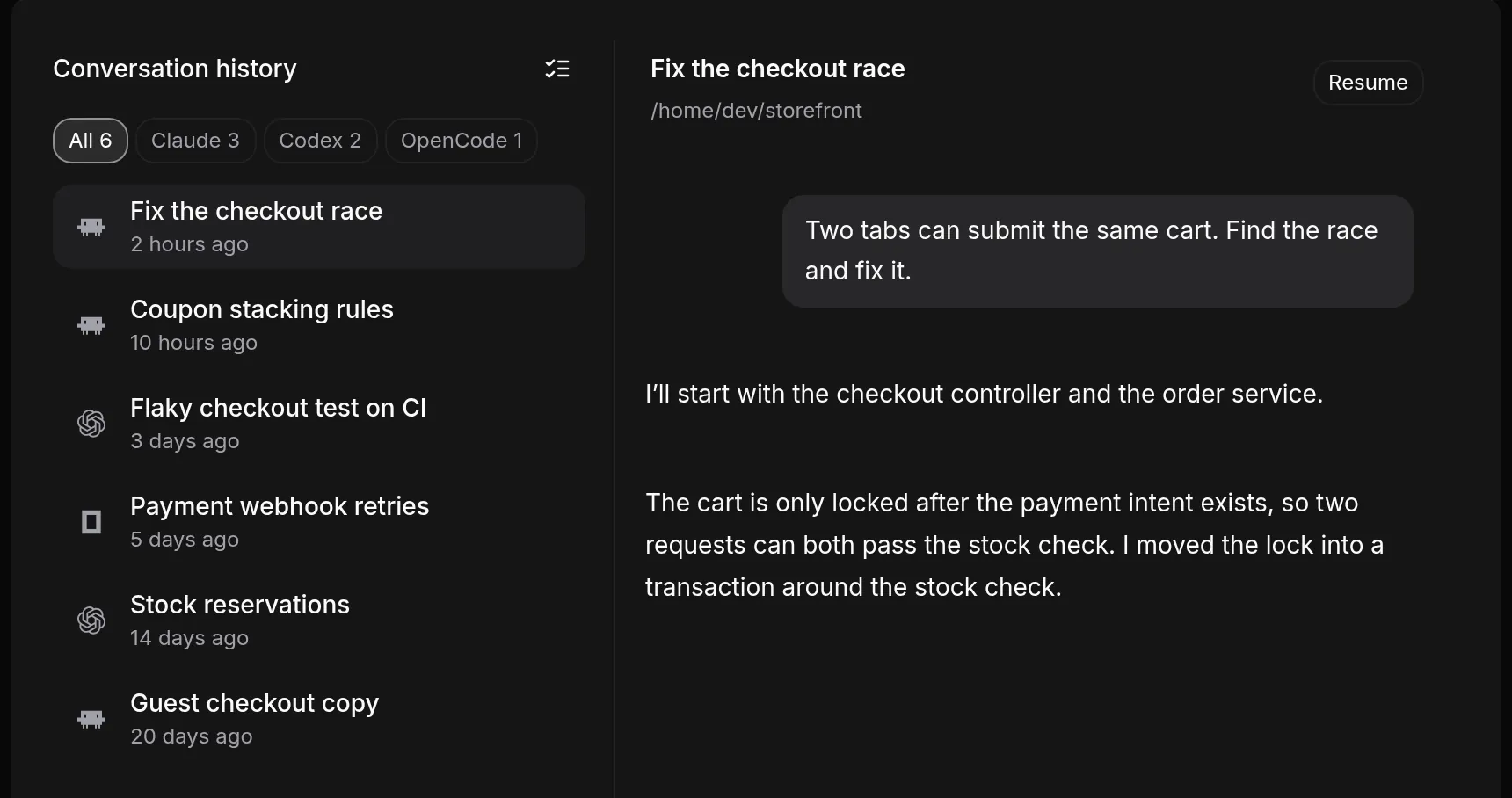
Open a project's Conversation history page from the project navigation or the command palette.
- The list on the left shows the project's conversations, newest first, with a chip for each harness and its count. Select a chip to filter by harness.
- Select a conversation to read its transcript on the right. Older messages load as you scroll up.
- Show reasoning and Hide reasoning toggle the agent's reasoning messages, when the conversation has any.
Search##
Press Ctrl+K to open the command palette and choose Search workspace content…. The search looks across agents, conversations and history, and selecting a message result opens that message in the conversation.
When you resume a conversation (below), the picker has its own search box. It matches titles, paths and message text across the whole history.
Agents can search the project's history too, using search_conversation_history and history_get. Results are limited to the caller's project.
Resume a conversation##
You can start a new agent that continues an old conversation in its original project context. Any of these work:
- On the History page, select Resume. The button is disabled if the conversation has no native ID or belongs to another project.
- In the command palette, choose Resume conversation… and pick one from the list.
- In an Integrated conversation, type
/resume, optionally followed by a search term. When the current conversation is still empty, the resumed one replaces it.
Resume opens a new agent of the same harness, continuing that native conversation.
An agent can resume a conversation too: pass a conversation_id from search_conversation_history to spawn_agent. Patterm rejects the request if that conversation already has a live managed agent.
Automatic summaries##
Automatic summaries are short recaps that appear in an agent's session context, in the sidebar status line and in hover cards. They are off by default.
Warning
Turning summaries on sends conversation text to the provider you select and uses its usage allowance. Redaction removes obvious secrets but is best-effort, so some can get through. Read this section before you enable it.
What gets summarised##
For agents, Patterm sends the conversation's prose in order, in batches, together with the previous recap so each one updates the last. Tool calls and reasoning are left out. Shell processes are summarised from their recent terminal output instead.
Only top-level agents that you have messaged are summarised. Child agents are skipped. After you enable summaries, a summary appears once you message an agent. A large existing conversation starts with partial coverage, shown in the session context.
Each request runs the CLI you choose, with no tools and no MCP access, using that CLI's normal sign-in. Patterm does not fall back to another model or to an API key.
Turn them on##
- Open Settings › Auto-summaries.
- Under Summariser, choose a Provider: Claude Code, Codex or OpenCode. A provider is selectable when its CLI is found on the machine.
- Choose a Model and, where offered, Reasoning. The Claude Code default is
haiku. - Set Minimum interval: 15 seconds, 30 seconds or 1 minute. This is the shortest gap between two summaries of one agent.
- Select Test summariser. This makes one request with synthetic text, so it uses a little of your allowance but reads no conversation.
- Switch on Enable auto-summaries.
Generate titles is on by default. It names agents that you have not named, from the same request. A name you or an agent chose always wins.
The panel shows Last background error if a recent summary failed.
Check coverage and rebuild##
In an agent's session context, Review summary coverage shows how many messages have been processed and roughly how many calls a full rebuild would take. From there you can:
- Rebuild from beginning to regenerate the recap from the whole conversation.
- Pause rebuild and Resume catch-up while it runs in batches. Your current recap stays visible meanwhile.
If earlier conversation text changes, Patterm asks you to rebuild rather than quietly rewriting the recap.
Summaries never change an agent's activity state or any timer.