Settings
Every option in Patterm's Settings, section by section.
Settings save as soon as you change them. There are no Save buttons, and a small status next to the option shows when it is saving, saved or has failed. Typed values such as a font size save after a short pause, or when the field loses focus.
Open Settings from the command palette. The sections run down the left side, and on a narrow screen along the top.
Most settings are stored on the host that runs Patterm, so they apply to every browser connected to a server. Some panel layout preferences belong to the browser or window you set them in.
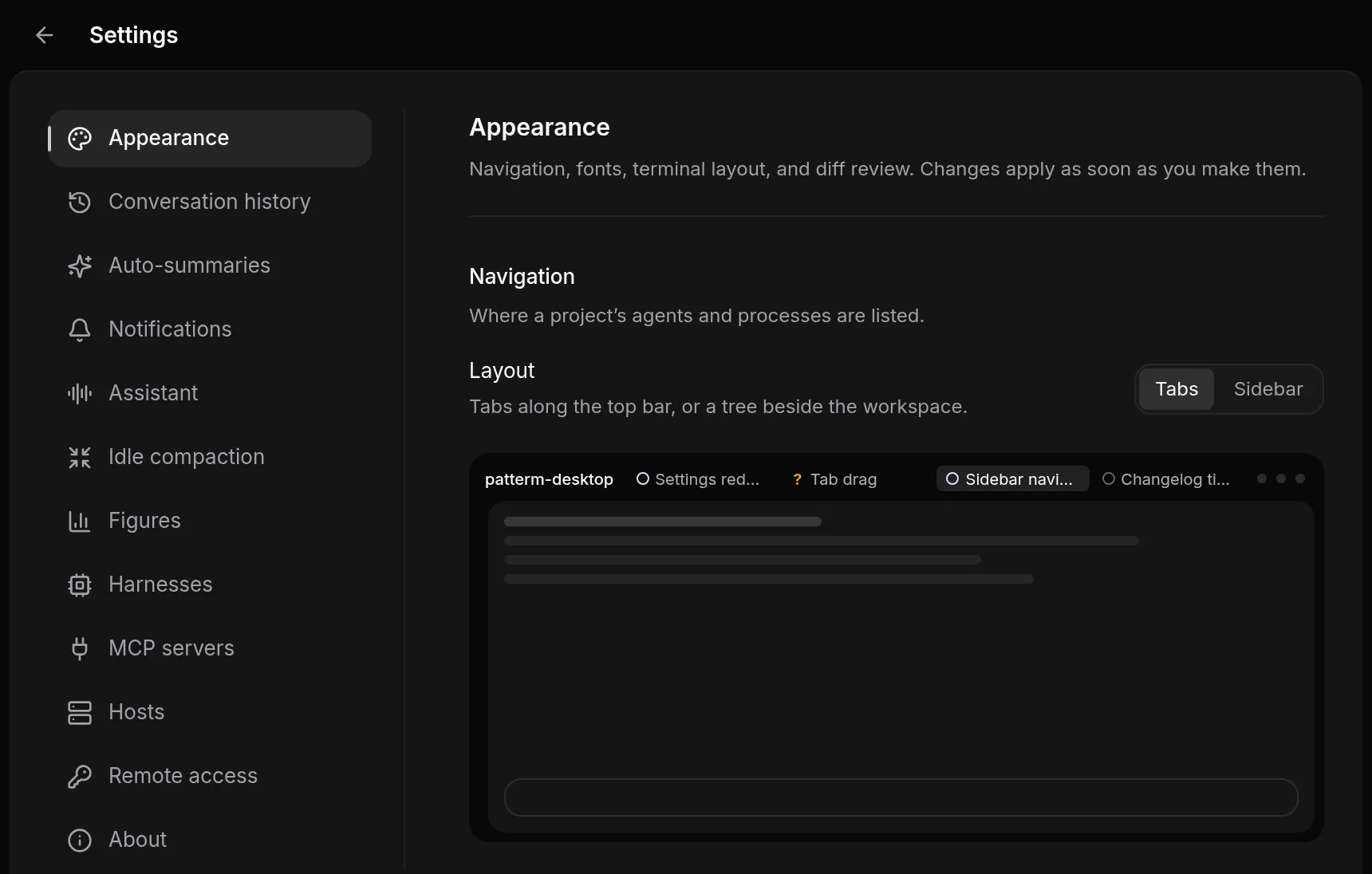
Appearance##
Navigation##
| Option | Choices | What it does |
|---|---|---|
| Layout | Tabs, Sidebar | Lists a project's agents and processes as tabs along the top bar, or as a tree beside the workspace. A preview shows the difference. Default: Tabs. |
| Personal project | on or off | Lists a project for agents that belong to no repository. Turned off, it still shows while something runs there. Default: off. |
Interface##
Font sets the font for tabs, menus and project views: Inter (default), Geist, Fira Sans, IBM Plex Sans, System or Custom. With Custom, enter a CSS font family, such as Aptos, ui-sans-serif, system-ui.
Terminal##
Fonts are bundled with Patterm, except the installed Nerd Font option, which falls back to bundled JetBrains Mono when the font is not installed. Custom uses fonts installed on the device you are using. Font changes resize running terminals.
| Option | What it does |
|---|---|
| Font | JetBrains Mono Nerd Font (installed) (default), JetBrains Mono, Geist Mono, Fira Code, Iosevka, IBM Plex Mono, Source Code Pro, Comic Mono, System Mono or Custom. |
| Font size | From 10 to 24 px. Default: 14. |
| Centre terminals | Limits terminals to 960 px wide and centres them. Turn it off to use the full width. Default: on. |
Diff review##
Layout sets how a worktree's changes open from the session sidebar: File tree (default) to browse changed files in a tree beside the open file, or Review deck to work through files in order and mark each one viewed. See Diff review.
Conversation history##
Imports conversations from agent CLIs so you can search and resume them. See Conversation history.
- Sources lists the places Patterm imports from. Enabled sources import automatically. Use Add source to add a Claude Code, Codex or OpenCode location, and the switch on each row to turn it on or off. A source whose path no longer exists shows Missing.
- Import now imports new conversations from every enabled source. Recent import results shows the last few runs.
- Import notifications tells you when imports start, finish or fail. Default: on.
- Reset and re-import… clears Patterm's imported copy and imports your enabled sources again. The agent CLIs' own history files are not touched.
Auto-summaries##
Short recaps of what each agent is doing, kept up to date without interrupting it. Off by default.
Warning
Turning this on sends conversation text and a compact recap to the provider you choose, and uses its usage allowance. Tools and reasoning are left out of agent recaps. Redaction is best effort, so the text can still contain secrets.
| Option | What it does |
|---|---|
| Enable auto-summaries | Summaries begin after you message a top-level agent. Child agents are skipped. |
| Generate titles | Names agents you have not named, from the same request. A name you or an agent chooses always wins. Default: on. |
| Provider | Claude Code (default), Codex or OpenCode. Uses that CLI's own login, with no fallback to another provider. |
| Model | The model the provider uses. Defaults: haiku for Claude Code, gpt-5.6-luna for Codex and OpenCode. |
| Reasoning | The reasoning level. Not offered for OpenCode. |
| Minimum interval | The shortest time between two summaries of one agent: 15 seconds, 30 seconds (default) or 1 minute. |
| Test summariser | Makes one model request with made-up text, to check the CLI, login and model. |
The summariser has no tools or MCP access and creates no resumable conversation. Large existing conversations begin with partial coverage. You can rebuild a recap from Session context.
Notifications##
Choose how each source of notification reaches you. Each of the nine sources, such as agent requests, Integrated permission prompts, process failures and bells, takes In app, desktop, and push, In app only or Off. Process failures and bells from agents default to in app only, bells from processes default to off, and the rest default to everywhere. The sources are listed in Notifications and close requests.
Delivery has three options:
- Minimum urgency: Low (includes bells), Normal (default), or High (permission prompts and failures only). Desktop and push notifications below the level stay in the app.
- Show toasts in the app: unread dots on tabs and projects stay on either way. Default: on.
- Quiet routine turns: when an Integrated agent is only waiting on other agents or reporting progress, its finished turn stays in the app without a toast or push. Questions, decisions and results still reach you. Default: off.
Send test notification sends a test. This device appears in a browser and sets up push notifications for that device. See Browser and phone access. The desktop app shows native notifications.
Assistant##
One Codex session that oversees your agents across all projects. Open it from the button in the bottom-right corner. This section sets its saved memory and context budget, its voice, voice profile, acknowledgements and your name, the Codex Model preset it starts with, and Forward notifications (default: on). Each option is described in Assistant.
Idle compaction##
Compacts an idle Integrated agent once, just before its prompt cache expires. The compaction reads the conversation from the cache, so your next message starts from a short summary instead of caching the whole conversation again. Only a new turn makes the agent eligible again.
One switch each for Claude, Codex and OpenCode, all on by default. The panel shows how long each waits. Codex and OpenCode compact only on GPT-5.6 and later, and the assistant is never compacted.
Figures##
Figures in replies lets Integrated agents save charts, tables, diagrams and choices with ui_save and place them in their replies. Terminal agents are not offered it. Turning it off removes ui_save from agents. Figures already in conversations still show. The panel also shows examples. Default: on.
Harnesses##
Choose the model, reasoning effort and, for Codex, speed that each agent CLI launches with. Each of Claude Code, Codex and OpenCode shows whether it was found on the host (Not discovered, or its version) and has a list of presets.
- Add preset opens a form with Name, Model, Reasoning and, for Codex, Speed. Model can be Harness default (no override), a model from the list, or Custom model ID…. Reasoning can be Model default or one of the model's levels. Speed can be Harness default, Standard, or another tier the model offers.
- Tick Default for the harness in the form, or select a preset's radio button in the list, to make it the default. The default applies when you launch without choosing a preset.
- Edit and Delete change a preset.
- Discover models refreshes the model lists.
MCP servers##
Servers added here are given to every agent Patterm starts, alongside the agent's own configuration. Changes apply to agents started afterwards. See Your MCP servers.
Hosts##
Pair this Patterm with another machine. See Multiple hosts.
Remote access##
Only in a browser connected to a server. Sets where browsers can open Patterm from (This machine, Tailscale, Network), Only me, and an optional Password. See Browser and phone access.
About##
Shows the Patterm version, the Licence (MIT), and the Third-party licences of the open-source components included in Patterm. View opens each one. Both work offline.